Fireworks Effects as SVG Filters

Written by David Evans, first published (last updated )
Macromedia Adobe Fireworks
was a fantastic drawing tool. I used it extensively: for websites, game
graphics, UI mockups, icons, and more. Sadly, as is the case for all good
things, it was killed by a large corporation.
To access my old files, I’ve been building a tool which can convert Fireworks images into SVG, both for loading in modern editors, and for using as-is. As part of this project, I needed to implement a wide variety of fill effects and filters. I’ve tried to make these somewhat faithful to Fireworks’ behaviour, while also supporting high-resolution rendering and correct alpha channel handling (something which the original filters often got wrong).
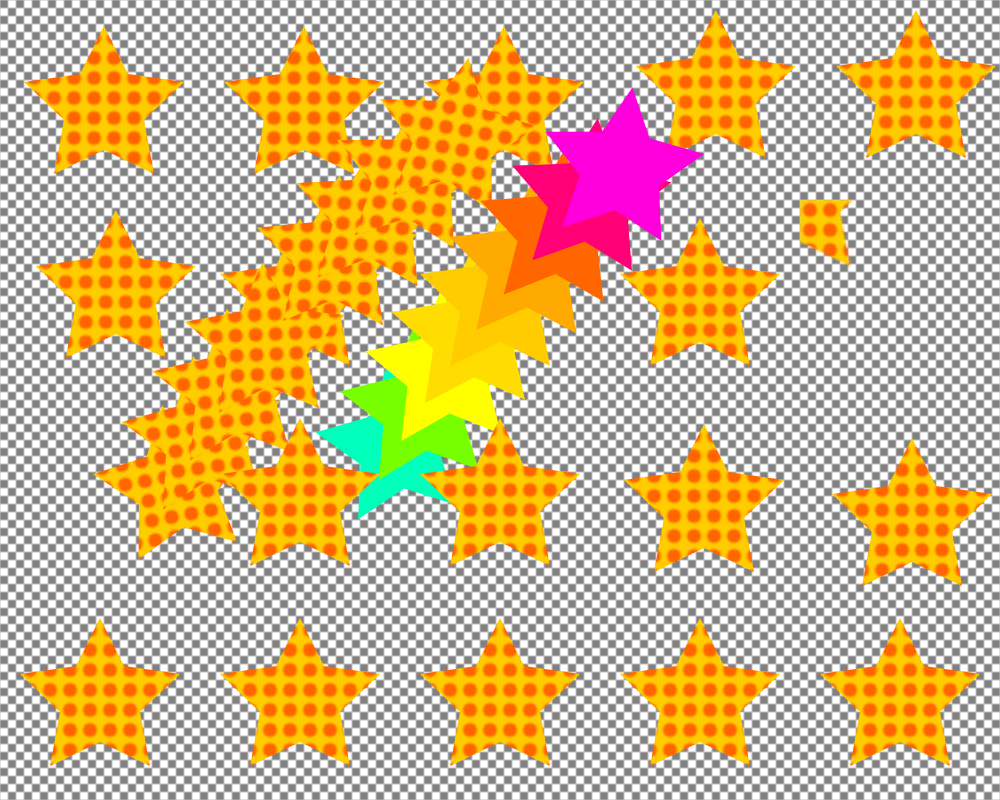
This article assumes you already have some familiarity with SVG in general and SVG filters in particular, and you’re curious to see how certain effects can be achieved.
So without further ado, a rundown of the effects and how I implemented them in SVG, loosely ordered by difficulty:
- Drop Shadow with Knockout
- Inner Shadow
- Inner Shadow with Knockout
- Solid Shadow / Extrude
- Solid Colour Solid Shadow
- Motion Blur
- Radial / Zoom Blur
- Add Noise
- Feather Fill
- Conic Gradient
- Offset Glow / Halo
- Shadow Spread
- Bevel / Emboss
- Outer Bevel
Drop Shadow with Knockout
The drop shadow is a widely used effect, and SVG supports it natively with
feDropShadow, but it does not natively support “knock out”, where the
original shape is removed, leaving a hole in the shadow. It looks like this:

It is implemented like this:
<filter id="my-drop-shadow-knockout-filter">
  <feOffset dx="2" dy="4" in="SourceAlpha" /> <!-- x, y shift -->
  <feGaussianBlur stdDeviation="3" />         <!-- blur amount -->
  <feComposite operator="out" in2="SourceAlpha" result="b" />
  <feFlood flood-color="#0066CC" />           <!-- colour + opacity -->
  <feComposite operator="in" in2="b" />
</filter>
Don’t forget to expand / shift the filter bounding box if you have a large offset or blur, or your input shape is small(note 1).
Walkthrough

SourceAlphais the outline of the shape;feOffsettranslates this to where we want the shadow to be;feGaussianBlurblurs this to look like a fuzzy shadow;feCompositewithoperator="out"subtracts our original shape (SourceAlpha) from the blurred shadow;- (if we want a black shadow we could stop here and use the
opacityattribute to change the shadow strength)
- (if we want a black shadow we could stop here and use the
feFloodgenerates a solid colour for the shadow;feCompositewithoperator="in"masks the flood colour with the shadow shape.
Inner Shadow
An inner shadow gives the impression of a hole punched into the page. It looks like this:

SVG also doesn’t have a built-in effect for inner shadows, either with or without knockout, but it can be implemented with a small variation on drop shadows:
<filter id="my-inner-shadow-filter">
  <feOffset dx="2" dy="4" in="SourceAlpha" />    <!-- x, y shift -->
  <feGaussianBlur stdDeviation="3" result="b" /> <!-- blur amount -->
  <feFlood flood-color="#0066CC" />              <!-- colour + opacity -->
  <feComposite operator="out" in2="b" />
  <feComposite operator="atop" in2="SourceGraphic" />
</filter>
Walkthrough

- As before, we offset and blur the shape to make our shadow, except this time it will act as a negative of the shadow;
feCompositewithoperator="out"subtracts the negative shadow from our solid shadow colour;feCompositewithoperator="atop"applies the shadow within the original shape (this operator ensures the original alpha is preserved).
Filter boundary
Even though the resulting effect does not expand beyond the input shape, we
still need our filter boundary to be larger. This avoids clipping in the
feOffset stage. However we do not need to avoid clipping in the
feGaussianBlur stage, so our bounds only depend on the offset (if you want
to get really complicated about it, they only need to be as large as the
minimum of the offset or the total blur radius, since anything further away
won’t end up affecting the shadow anyway).
We can even reduce the bounds to a single quadrant (based on the offset we pick). For example, if our offset is positive in x and y:
<filter x="0%" y="0%" width="110%" height="110%">
Inner Shadow with Knockout

It is implemented like this:
<filter id="my-knockout-inner-shadow-filter">
  <feOffset dx="2" dy="4" in="SourceAlpha" />    <!-- x, y shift -->
  <feGaussianBlur stdDeviation="3" result="b" /> <!-- blur amount -->
  <feFlood flood-color="#0066CC" />              <!-- colour + opacity -->
  <feComposite operator="out" in2="b" />
  <feComposite operator="in" in2="SourceAlpha" />
</filter>
This is identical to the inner shadow without knockout, except the last stage has changed. The final stage here clips the shadow to the original shape, rather than applying it on top of the original image.
Solid Shadow / Extrude
Solid shadows are used to “extrude” an object, making it look somewhat three-dimensional. First, a classic extrude which preserves the edge colours:
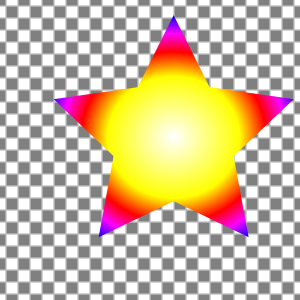
SVG has no native support for them, and they’re usually best achieved by adding new vector shapes to the image, but it is possible to approximate them as a filter if desired (e.g. to apply to text or dynamic content). These are easier to implement programmatically since they need some repetition, but they are not too hard to write by hand:
<filter id="my-solid-shadow-filter">
  <feOffset dx="0.125" dy="-0.0625" />
  <feComposite operator="over" in="SourceGraphic" result="025" />
  <feOffset dx="0.25" dy="-0.125" />
  <feComposite operator="over" in="025" result="05" />
  <feOffset dx="0.5" dy="-0.25" />
  <feComposite operator="over" in="05" result="1" />
  <feOffset dx="1" dy="-0.5" />
  <feComposite operator="over" in="1" result="2" />
  <feOffset dx="2" dy="-1" />
  <feComposite operator="over" in="2" result="4" />
  <feOffset dx="4" dy="-2" />
  <feComposite operator="over" in="4" result="8" />
  <!-- continue for deeper shadows -->
</filter>
Note that this involves discrete steps which build up exponentially. This means we must chose the resolution of the effect. If the image is zoomed too much, artifacts will become visible:
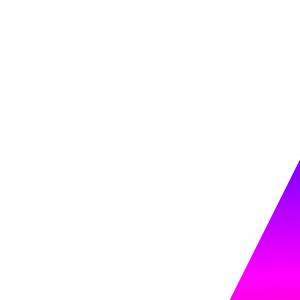
The sub-pixel steps at the start can be increased to reduce this effect, at the cost of slightly lower performance / larger images.
Walkthrough
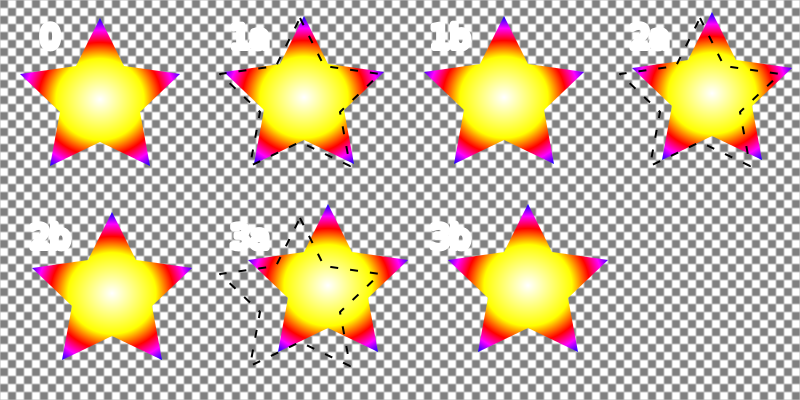
Each pair of feOffset + feComposite doubles the length of the shadow. We
begin with sub-unit distances so that it will look sharp when zoomed and on
high-resolution displays, then we quickly increase the length. Since the length
increases exponentially, the number of stages needed only increases
logarithmically with desired length.
- The first
feOffsetshifts the image by the smallest unit we want to use (the smaller this distance, the more the resulting image can be zoomed before looking coarse); feCompositewithoperator="over"stacks the original image back on top;
- The first
- The next pair of operations do the same, but shift by twice the distance;
- Each subsequent pair of operations doubles the distance again.
Non-power-of-two lengths can be achieved by combining relevant power-of-two lengths. For example to get a length of 10, combine 8 and 2: (sub-pixel stages omitted)
<feOffset dx="1" dy="-0.5" />
<feComposite operator="over" in="SourceGraphic" result="2" />
<feOffset dx="2" dy="-1" />
<feComposite operator="over" in="2" result="4" />
<feOffset dx="4" dy="-2" />
<feComposite operator="over" in="4" result="8" />

<feOffset dx="2" dy="-1" />
<feComposite operator="over" in="2" result="10" />
Solid Colour Solid Shadow
To get a bit more definition, we can change the colour of a solid shadow’s “edge”, either by setting it to a fixed colour, or by tinting it:
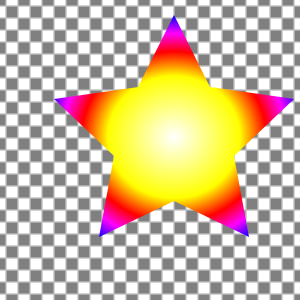
The implementation is the same as before, but with some prefix and suffix stages:
<filter id="my-solid-shadow-colour-filter">
  <feFlood flood-color="#0000CC" flood-opacity="0.9" />
  <feComposite operator="atop" in2="SourceGraphic" result="0" />

  <feOffset dx="0.125" dy="-0.0625" />
  <feComposite operator="over" in="0" result="025" />
  <feOffset dx="0.25" dy="-0.125" />
  <feComposite operator="over" in="025" result="05" />
  <feOffset dx="0.5" dy="-0.25" />
  <feComposite operator="over" in="05" result="1" />
  <feOffset dx="1" dy="-0.5" />
  <feComposite operator="over" in="1" result="2" />
  <feOffset dx="2" dy="-1" />
  <feComposite operator="over" in="2" result="4" />
  <feOffset dx="4" dy="-2" />
  <feComposite operator="over" in="4" result="8" />
  <!-- continue for deeper shadows -->

  <feOffset dx="0.125" dy="-0.0625" />
  <feComposite operator="over" in="SourceGraphic" />
</filter>
Walkthrough
The initial stages modify the colour of the image before the solid shadow is generated. The final stages then push the shadow one final step away, and apply the original image back on top.
Motion Blur
A motion blur blurs the image in a specific direction, giving the impression of movement or vibration which is too fast for a camera’s shutter speed.
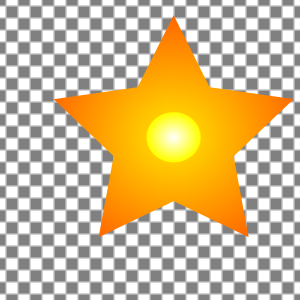
The same technique from solid shadows can be used to implement a motion blur; it just uses a different compositing operation:
<filter id="my-motion-blur-filter">
  <feOffset dx="0.125" dy="-0.0625" />
  <feComposite operator="arithmetic" k2="0.5" k3="0.5" in="SourceGraphic" result="025" />
  <feOffset dx="0.25" dy="-0.125" />
  <feComposite operator="arithmetic" k2="0.5" k3="0.5" in="025" result="05" />
  <feOffset dx="0.5" dy="-0.25" />
  <feComposite operator="arithmetic" k2="0.5" k3="0.5" in="05" result="1" />
  <feOffset dx="1" dy="-0.5" />
  <feComposite operator="arithmetic" k2="0.5" k3="0.5" in="1" result="2" />
  <feOffset dx="2" dy="-1" />
  <feComposite operator="arithmetic" k2="0.5" k3="0.5" in="2" result="4" />
  <feOffset dx="4" dy="-2" />
  <feComposite operator="arithmetic" k2="0.5" k3="0.5" in="4" result="8" />
</filter>
feComposite with operator="arithmetic" and k2="0.5" k3="0.5" averages
the two inputs together.
When creating non-power-of-two lengths, we need to pick k2 and k3 based on
the relative lengths:
<feOffset dx="1" dy="-0.5" />
<feComposite operator="arithmetic" k2="0.5" k3="0.5" in="SourceGraphic" result="2" />
<feOffset dx="2" dy="-1" />
<feComposite operator="arithmetic" k2="0.5" k3="0.5" in="2" result="4" />
<feOffset dx="4" dy="-2" />
<feComposite operator="arithmetic" k2="0.5" k3="0.5" in="4" result="8" />

<feOffset dx="2" dy="-1" />
<feComposite operator="arithmetic" k2="0.2" k3="0.8" in="2" result="10" />
k2 is the amount of in to use, k3 is the amount of in2 to use (here
in2 defaults to the previous operation). Since we are combining the 2 and
8 stages, the proportions are and
.
Radial / Zoom Blur
A radial blur blurs an image rotationally, making it look like it is spinning:
For any non-linear motion blur, SVG’s filters are too limited. There’s no
matrix-based transformation; all we get is feOffset. It might be possible
to use feDisplacementMap with a carefully curated map, but that currently
has problems due to
colour space bugs in Chrome,
and would be very complicated to implement anyway.
Instead of using filters, we can duplicate our element many times using
<use>:
<g style="isolation: isolate">
  <!-- arbitrary shape definition with id -->
  <path
    d="M0-41L12-17 40-13 20 6 25 33 0 21-25 33-20 6-40-13-12-17Z"
    id="my-path"
    opacity="0.11111"
    style="mix-blend-mode: plus-lighter"
  />
  <!-- transformed references -->
  <use href="#my-path" transform="rotate(-10)" transform-origin="center" style="transform-box: fill-box; mix-blend-mode: plus-lighter" />
  <use href="#my-path" transform="rotate(-7.5)" transform-origin="center" style="transform-box: fill-box; mix-blend-mode: plus-lighter" />
  <use href="#my-path" transform="rotate(-5)" transform-origin="center" style="transform-box: fill-box; mix-blend-mode: plus-lighter" />
  <use href="#my-path" transform="rotate(-2.5)" transform-origin="center" style="transform-box: fill-box; mix-blend-mode: plus-lighter" />
  <use href="#my-path" transform="rotate(2.5)" transform-origin="center" style="transform-box: fill-box; mix-blend-mode: plus-lighter" />
  <use href="#my-path" transform="rotate(5)" transform-origin="center" style="transform-box: fill-box; mix-blend-mode: plus-lighter" />
  <use href="#my-path" transform="rotate(7.5)" transform-origin="center" style="transform-box: fill-box; mix-blend-mode: plus-lighter" />
  <use href="#my-path" transform="rotate(10)" transform-origin="center" style="transform-box: fill-box; mix-blend-mode: plus-lighter" />
</g>
Walkthrough
In this example there are 9 copies of the object, so each has an opacity of
. Normally combining opacities like this wouldn’t work,
but we can use CSS’
mix-blend-mode: plus-lighter
inside a group with
isolation: isolate
to make the semitransparent shapes sum together.
With those parts implemented, it only remains to decide how to transform the
shape along its path. In this example, we use transform="rotate(n)" at
2.5-degree intervals (skipping 0 since that’s covered by our original shape),
and set
transform-origin="center"
and
transform-box: fill-box
so that the rotation is around the centre of the shape. Any other transformation
can be used (zoom, skew, even 3D transformations).
Note that we do not get the exponential growth of the motion blur here; the cost
increases linearly with the number of instances we render. We could make the
image size logarithmic by nesting <use> blocks, but the performance would not
improve: unlike a filter, each instance must still be rendered independently.
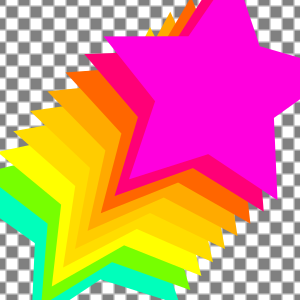
The payoff from this relatively poor performance is a huge amount of flexibility. We can apply any motion with this technique, and we can control the individual opacities of each instance (allowing us to create window functions, for example, for more realistic motion blurs), or even the colour (for effects like chromatic aberration or rainbow motion blur).
Add Noise
At low intensities, adding random noise to an image can make solid fills and gradients look more like physical materials. At higher intensities it can provide a grainy low-light effect or a sand-like texture:

The core of this effect is easy to achieve in SVG using feTurbulence; SVG’s
noise generating function. But we also need to perform some extra steps so that
we can apply the noise in “non-premultiplied” colour space.
Premultiplied colour space
SVG’s filters (with the exception of feComponentTransfer and
feColorMatrix) operate in “premultiplied” colour space. That means the red,
green, and blue channels are multiplied by the alpha (transparency); fully
transparent colours will always have red, green, and blue set to 0; 50%
transparent colours will have their red, green, and blue values halved, etc.
This has advantages for compositing performance and makes it easier to achieve
good looking results in most cases, but it is not always what we want.
In the case of adding noise, we get better results with non-premultiplied alpha. It’s easiest to understand with a visual example:

Even without explicit semitransparent areas, this effect still manifests in the antialiased edge pixels, so we should use non-premultiplied colour when adding noise regardless of our source image.
Sadly SVG doesn’t offer a way to control the behaviour, but we can achieve this by performing our own “de-multiplication” and “re-multiplication” stages:
<!-- de-multiply alpha (set alpha to 1 everywhere) -->
<feComponentTransfer>
  <feFuncA type="linear" slope="0" intercept="1" />
</feComponentTransfer>

<!-- (other operations -->

<!-- re-multiply alpha -->
<feComposite operator="in" in2="SourceAlpha" />
Implementation
With the colour space handled, we can implement the Add Noise filter. This specific example adds signed noise (i.e. noise which can brighten or darken the image) independently to each of the red, green, and blue channels:
<filter id="my-noise-filter" x="0%" y="0%" width="100%" height="100%">
  <!-- de-multiply alpha -->
  <feComponentTransfer result="r">
    <feFuncA type="linear" slope="0" intercept="1" />
  </feComponentTransfer>
  <!-- generate noise -->
  <feTurbulence
    numOctaves="1"
    baseFrequency="1"
    seed="0"
    type="fractalNoise"
  />
  <feComponentTransfer>
    <feFuncA type="linear" slope="0" intercept="1" />
  </feComponentTransfer>
  <!-- add noise -->
  <feComposite
    operator="arithmetic"
    in2="r"
    k2="1.50"
    k3="1"
    k4="-0.75"
  />
  <!-- re-multiply alpha -->
  <feComposite operator="in" in2="SourceAlpha" />
</filter>
Walkthrough

SourceGraphicis our input image;feComponentTransferis used to set the alpha to 1 everywhere (de-multiplying the colour channels);feTurbulencewithnumOctaves="1"generates simple uniform random noise (“white noise”), at a scale of1 / baseFrequency;feComponentTransferis again used to set alpha to 1 everywhere, discarding the alpha component of the noise;- if we want monotone noise, we could swap this stage for an
feColorMatrix, such as this for grayscale noise:<feColorMatrix type="matrix" values=" 1 0 0 0 0 1 0 0 0 0 1 0 0 0 0 0 0 0 0 1 " />
- if we want monotone noise, we could swap this stage for an
feCompositewithoperator="arithmetic"is used to add the noise on to the de-multiplied image;k2controls the amount of noise, andk4controls the offset (whenk4=k2 * -0.5, the noise is applied symmetrically).
feCompositewithoperator="in"re-applies the original image alpha.
Feather Fill
Feather fills make the edges of a shape softer without blurring the contents:
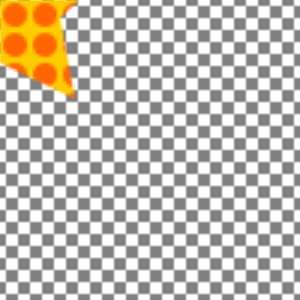
If we have a solid fill, we can simply blur the object, but if we have a more complex fill (gradient, pattern, etc.) this would blur the fill itself, which we do not want. Instead we can change our shape into an alpha mask, blur it, and apply it to a shape which contains our (unblurred) fill:
<defs>
  <filter id="my-feather">
    <feGaussianBlur stdDeviation="3" /> <!-- feather amount -->
  </filter>
  <mask id="my-shape" mask-type="alpha">
    <!-- arbitrary shape definition, with filter applied -->
    <path
      d="M0-41L12-17 40-13 20 6 25 33 0 21-25 33-20 6-40-13-12-17Z"
      fill="black"
      filter="url(#my-feather)"
    />
  </mask>
</defs>
<rect
  x="0"
  y="0"
  width="100%"
  height="100%"
  fill="url(#whatever-fill)"
  mask="url(#my-shape)"
/>
The <rect> must cover the entirety of the blurred shape, but should ideally
not be too large (to avoid rendering large areas of fill unnecessarily).
It’s possible to do something similar entirely in a filter (by blurring only the alpha channel), but the result is broken due to there being no colour information for pixels which were transparent; the shape is left with a fuzzy black border, rather than being properly feathered.
Conic Gradient
Conic gradients (also known as Angle gradients) sweep a gradient clockwise or counterclockwise around a focal point:
SVG does not support conic gradients, but CSS does. We can use a
<foreignObject>
to embed a div which has the conic gradient applied, then mask it to our
original shape:
<mask id="my-shape" mask-type="alpha">
  <!-- arbitrary shape definition -->
  <path
    d="M0-41L12-17 40-13 20 6 25 33 0 21-25 33-20 6-40-13-12-17Z"
    fill="black"
  />
</mask>
<foreignObject width="100%" height="100%" mask="url(#my-shape)">
  <div
    xmlns="http://www.w3.org/1999/xhtml"
    style="
      height: 100px;
      background: conic-gradient(
        from 10deg at 50px 50px,
        #FF0000 0%,
        #FFFF00 16.6%,
        #00FF00 33.3%,
        #00FFFF 50%,
        #0000FF 66.7%,
        #FF00FF 83.3%,
        #FF0000 100%
      )
    "
  ></div>
</foreignObject>
Warning: Safari handles foreignObject positioning differently from other
browsers if the viewBox does not begin at 0, 0.
Also notice that the height of the div must be set explicitly. This size shown
in pixels is actually interpreted in SVG units. Using percentages (e.g. 100%)
will work in some browsers, but not others.
In general, foreignObjects limit compatibility across browsers and with image
editing software. It is best to avoid them if possible, but conic gradients are
one example where there is currently no alternative.
Offset Glow / Halo
An offset glow adds a halo around a shape starting at a chosen distance:

Without the offset, this is easy to achieve by using a shadow, but adding the offset takes a bit more work.
Distance Map
To put a glow at a particular distance, we need to know the distance from each point to our shape.
SVG doesn’t have a distance filter (it may be possible to repeatedly apply
feMorphology or an feConvolveMatrix, but that would be quite slow), but
it does have feGaussianBlur, which can be used as a reasonable approximation
(albeit a non-linear one, and one which clips sharp corners).
After Gaussian blurring an opaque shape, we have a distance map based on the error function. Specifically, for a blur with a standard deviation of , defined as:
The indefinite integral is:
Which we can use to plot expected values by distance from the (smoothed) edge:
We could create a mapping to convert these values directly into the glow amount we want at each distance, but it’s more flexible (and, potentially, animatable) to split the process into stages:
- Linearise our distance function using a static lookup table;
- Apply simple linear transforms to set the glow offset and size;
- Convert the new distance into our chosen glow shape (e.g. a Gaussian, Sine, triangle, etc.) using a second static lookup table.
Looking at the shape of the output above, we should be able to create a distance map from -6 to +6 (i.e. from to ) before losing too much accuracy. Our desired linear output is:
Which is simply the equation: clamped to the range [0 1]. Combining these two:
With this mapping, an output of 0 means a distance of , and an output of 1 means a distance of . Visualising it:
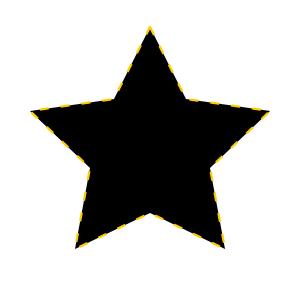
To turn this mapping into something we can use in SVG filters, we need to
convert it to a lookup table by sampling it at regular intervals (to conform to
feComponentTransfer’s API). Using 21 values fits closely enough for good
results:
-0.068 0.089 0.180 0.241 0.290 0.331 0.369 0.404 0.437 0.469 0.500 0.531 0.563 0.596 0.631 0.669 0.710 0.759 0.820 0.911 1.068
Notice that the first and last values are not in the [0 1] range; they have been extrapolated to make the last parts of the curve fit more closely without needing to increase the number of samples. We can do this because the SVG filter will clamp the output to [0 1] anyway.
The filter code for our distance map is:
<feGaussianBlur stdDeviation="5" in="SourceAlpha" />
<feComponentTransfer>
  <feFuncA
    type="table"
    tableValues="-0.068 0.089 0.180 0.241 0.290 0.331 0.369 0.404 0.437 0.469 0.500 0.531 0.563 0.596 0.631 0.669 0.710 0.759 0.820 0.911 1.068"
  />
</feComponentTransfer>
Conveniently, because this is the alpha channel we do not need to worry about
the
color-interpolation-filters
setting.
Semitransparency
As written, our distance map does not do well with semitransparent shapes:

What does the distance even mean for a semitransparent shape? Where is the edge? We need to define it more explicitly by picking a threshold opacity which we will measure distance from:

<feComponentTransfer in="SourceAlpha">
  <!-- intercept controls the threshold, from -100 to 0 -->
  <feFuncA type="linear" slope="101" intercept="-50" />
</feComponentTransfer>
<feGaussianBlur stdDeviation="5" />
<feComponentTransfer>
  <feFuncA
    type="table"
    tableValues="-0.068 0.089 0.180 0.241 0.290 0.331 0.369 0.404 0.437 0.469 0.500 0.531 0.563 0.596 0.631 0.669 0.710 0.759 0.820 0.911 1.068"
  />
</feComponentTransfer>
Implementation
Now that we have a distance map, all that remains is to decide what shape we want the glow to be and apply the mapping:
<filter id="my-offset-glow-filter" x="-20%" y="-20%" width="140%" height="140%">
  <feComponentTransfer in="SourceAlpha">
    <!-- intercept controls the threshold, from -100 to 0 -->
    <feFuncA type="linear" slope="101" intercept="-50" />
  </feComponentTransfer>
  <!-- stdDeviation is half the maximum glow distance -->
  <feGaussianBlur stdDeviation="5" />
  <!-- linearise -->
  <feComponentTransfer>
    <feFuncA
      type="table"
      tableValues="-0.068 0.089 0.180 0.241 0.290 0.331 0.369 0.404 0.437 0.469 0.500 0.531 0.563 0.596 0.631 0.669 0.710 0.759 0.820 0.911 1.068"
    />
  </feComponentTransfer>
  <!-- slope and intercept control glow position and width -->
  <feComponentTransfer>
    <feFuncA type="linear" slope="3" intercept="0" />
  </feComponentTransfer>
  <!-- map to a triangle shape for the glow -->
  <feComponentTransfer result="b">
    <feFuncA type="table" tableValues="0 1 0" />
  </feComponentTransfer>
  <!-- set colour -->
  <feFlood flood-color="#FFEE00" />
  <feComposite operator="in" in2="b" />
  <feComposite operator="over" in2="SourceGraphic" />
</filter>
To achieve a glow with distance , and width , the properties should be set to:
stdDeviation()slopeintercept
If the stdDeviation () is set exactly as above, the slope and intercept
equations simplify:
slopeintercept= 0 for outer glow (), and =1 - slopefor inner glow ()
To save some steps at the cost of losing some code clarity, we could combine the
feFlood step into the feComponentTransfer above it:
<!-- [...] -->
<feComponentTransfer>
  <feFuncA type="linear" slope="3" intercept="0" />
</feComponentTransfer>
<feComponentTransfer color-interpolation-filters="sRGB">
  <feFuncR type="linear" intercept="1" slope="0" />
  <feFuncG type="linear" intercept="0.95" slope="0" />
  <feFuncB type="linear" intercept="0" slope="0" />
  <feFuncA type="table" tableValues="0 1 0" />
</feComponentTransfer>
<feComposite operator="over" in2="SourceGraphic" />
Of course we can also get much more imaginative with our glow shapes, and even create multicoloured glows:

Shadow Spread
Since we have a distance map from implementing the
offset glow, we can make a bonus effect which neither
Fireworks nor SVG support natively. CSS’
box-shadow
accepts a “spread” parameter to enlarge or shrink a shadow. We can do the same
for arbitrary shapes:
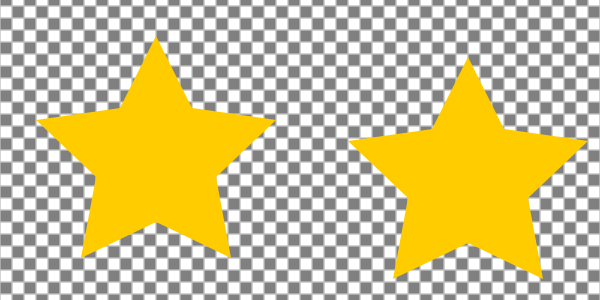
<filter id="my-shadow-filter">
  <feOffset dx="2" dy="3" in="SourceAlpha" /> <!-- x, y shift -->
  <feGaussianBlur stdDeviation="3" />         <!-- scale -->
  <feComponentTransfer>
    <feFuncA type="table" tableValues="-0.068 0.089 0.180 0.241 0.290 0.331 0.369 0.404 0.437 0.469 0.500 0.531 0.563 0.596 0.631 0.669 0.710 0.759 0.820 0.911 1.068" />
  </feComponentTransfer>
  <feComponentTransfer>
    <!-- spread and blur -->
    <feFuncA type="linear" slope="2" intercept="0" />
  </feComponentTransfer>
  <feComponentTransfer result="b">
    <feFuncA type="table" tableValues="0 0.003 0.008 0.018 0.036 0.067 0.115 0.184 0.274 0.382 0.500 0.618 0.726 0.816 0.885 0.933 0.964 0.982 0.992 0.997 1" />
  </feComponentTransfer>
  <!-- shadow colour -->
  <feFlood flood-color="#0066CC" />
  <feComposite operator="atop" in2="b" />
  <feComposite operator="over" in="SourceGraphic" />
</filter>
To achieve a blur with spread , and standard deviation , the properties should be set to:
stdDeviation()slopeintercept
If the stdDeviation () is set exactly as above, the slope and intercept
equations simplify:
slopeintercept= 0 for expanded (), and =1 - slopefor reduced ()
Walkthrough
This begins with the same distance map calculation as a glow, then applies a different mapping at the end. This time we want to return to a Gaussian blur, so we need to map to its integral (the error function). Since we can again perform scaling and shifting as a separate step, we can assume a fixed centre point of 0.5 and standard deviation of to make good use of the input range:
Tabulated:
0 0.003 0.008 0.018 0.036 0.067 0.115 0.184 0.274 0.382 0.500 0.618 0.726 0.816 0.885 0.933 0.964 0.982 0.992 0.997 1
(the first and last values have been set to 0 and 1 to avoid the effect leaking beyond its bounds; the actual values for these points are 0.001 and 0.999, so the difference is negligible)
Bevel / Emboss
A bevel or emboss effect gives a shape a 3D look, adding the impression of raised or lowered edges via lighting effects:

If you’ve ever wondered why SVG has so many lighting-related elements, the answer is bevel / emboss effects (which were presumably more common when the spec was written, and maybe will come back into fashion some day).
<filter id="my-bevel-filter" x="0%" y="0%" width="100%" height="100%">
  <feComponentTransfer in="SourceAlpha">
    <!-- intercept controls opacity threshold for edge detection -->
    <feFuncA type="linear" slope="101" intercept="-50" />
  </feComponentTransfer>
  <!-- stdDeviation = 0.5 * size of bevel -->
  <feGaussianBlur stdDeviation="2" />
  <feComponentTransfer result="height">
    <feFuncA type="table" tableValues="-0.068 0.089 0.180 0.241 0.290 0.331 0.369 0.404 0.437 0.469 0.500 0.531 0.563 0.596 0.631 0.669 0.710 0.759 0.820 0.911 1.068" />
  </feComponentTransfer>
  <feSpecularLighting
    surfaceScale="10"
    kernelUnitLength="0.5 0.5"
    specularConstant="0.1"
    specularExponent="10"
    result="specular"
  >
    <feDistantLight azimuth="-100" elevation="20" />
  </feSpecularLighting>
  <feDiffuseLighting
    surfaceScale="10"
    kernelUnitLength="0.5 0.5"
    diffuseConstant="1"
    in="height"
  >
    <feDistantLight azimuth="-100" elevation="20" />
  </feDiffuseLighting>
  <feComposite operator="arithmetic" in="SourceGraphic" k1="1" />
  <feComposite operator="atop" in="specular" />
</filter>
Walkthrough
SVG provides feDiffuseLighting and feSpecularLighting for 3D effects.
Both operate on a height map provided in the alpha channel.
To generate this height map, we will again need the shape’s distance map. See offset glow for a discussion on how we obtain it. This time, we’ll convert it to a height map based on the 3D shape we wish to represent. For example a simple linear inner bevel has a height map like this:
Converting our distance map to this height map is simple:
<feComponentTransfer>
  <feFuncA type="linear" slope="2" intercept="-1" />
</feComponentTransfer>
However, using a height map which stops at 0 leads to a poor effect due to the Gaussian blur’s habit of cutting corners. To fix this, we can choose to either embrace the rounding and clip the shape, or extend our height map “outside” the shape:

In this case, “extended” simply means using the original height map without
adjusting it (but doubling the surfaceScale property to maintain the same
overall shape). For more complicated height maps, extending the height function
may have different meanings.
By playing with the height function and compositing operations, we can create a variety of effects:

The coloured frame example shows a few ways to vary the effect; using a different height function, different clipping thresholds, and different compositing steps:
<filter id="my-frame-filter">
  <feGaussianBlur in="SourceAlpha" stdDeviation="2" result="blur" />
  <feComponentTransfer result="clip">
    <feFuncA type="linear" slope="101" intercept="-3" />
  </feComponentTransfer>
  <feComponentTransfer in="blur" result="clip-frame">
    <feFuncA type="linear" slope="101" intercept="-98.5" />
  </feComponentTransfer>
  <feComponentTransfer in="blur">
    <feFuncA type="table" tableValues="-0.068 0.089 0.180 0.241 0.290 0.331 0.369 0.404 0.437 0.469 0.500 0.531 0.563 0.596 0.631 0.669 0.710 0.759 0.820 0.911 1.068" />
  </feComponentTransfer>
  <feComponentTransfer>
    <feFuncA
      type="table"
      tableValues="0 0.5 0.8 0.95 1 0.95 0.8 0.5 0"
    />
  </feComponentTransfer>
  <feDiffuseLighting
    surfaceScale="3"
    kernelUnitLength="0.5 0.5"
    result="shading"
  >
    <feDistantLight azimuth="-120" elevation="40" />
  </feDiffuseLighting>
  <feFlood flood-color="#3399FF" />
  <feComposite operator="arithmetic" k1="1" in2="shading" />
  <feComposite operator="out" in2="clip-frame" />
  <feComposite operator="over" in2="SourceGraphic" />
  <feComposite operator="in" in2="clip" />
</filter>
Outer Bevel
Bevels can also be outside the shape, as long as they are given an explicit colour:

We can implement this as a small variation of the “coloured frame” bevel:
<filter id="my-outer-bevel-filter">
  <feGaussianBlur in="SourceAlpha" stdDeviation="2" result="blur" />
  <feComponentTransfer result="clip">
    <feFuncA type="linear" slope="101" intercept="-2" />
  </feComponentTransfer>
  <feComponentTransfer in="blur">
    <feFuncA type="table" tableValues="-0.068 0.089 0.180 0.241 0.290 0.331 0.369 0.404 0.437 0.469 0.500 0.531 0.563 0.596 0.631 0.669 0.710 0.759 0.820 0.911 1.068" />
  </feComponentTransfer>
  <feComponentTransfer>
    <feFuncA
      type="table"
      tableValues="0 0.5 0.8 0.95 1 1 1 1 1"
    />
  </feComponentTransfer>
  <feDiffuseLighting
    surfaceScale="3"
    kernelUnitLength="0.5 0.5"
    result="shading"
  >
    <feDistantLight azimuth="-120" elevation="40" />
  </feDiffuseLighting>
  <feFlood flood-color="#CCDDFF" />
  <feComposite operator="arithmetic" k1="1" in2="shading" />
  <feComposite operator="in" in2="clip" />
  <feComposite operator="over" in="SourceGraphic" />
</filter>
Further Reading
The internet is full of guides on achieving various SVG filter effects, so I won’t list specific sites here. As always, MDN is a great reference (though sometimes lacking references to useful filter attributes).
If you ever used Fireworks and have some old PNGs you’d like to recover, give my PNG reader a try. It runs in the browser and everything stays fully local. It still has a lot of limitations, but if you find something big which it fails to handle, please let me know!
Footnotes
Eventually it should be possible to use the filter margin to set up filters which have the correct bounds regardless of the target shape’s size, but this is not currently finalised or implemented in any browsers. ↩︎